
The Video block allows you to feature a video on the front-end of your CrowdChange page. To add a Video block to your fundraiser, follow these steps:
-
Go to your CrowdChange fundraiser and log in
-
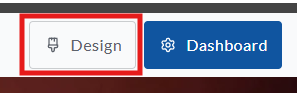
On your fundraiser, click Design
-
Once in edit mode, click the plus sign between any two blocks
-
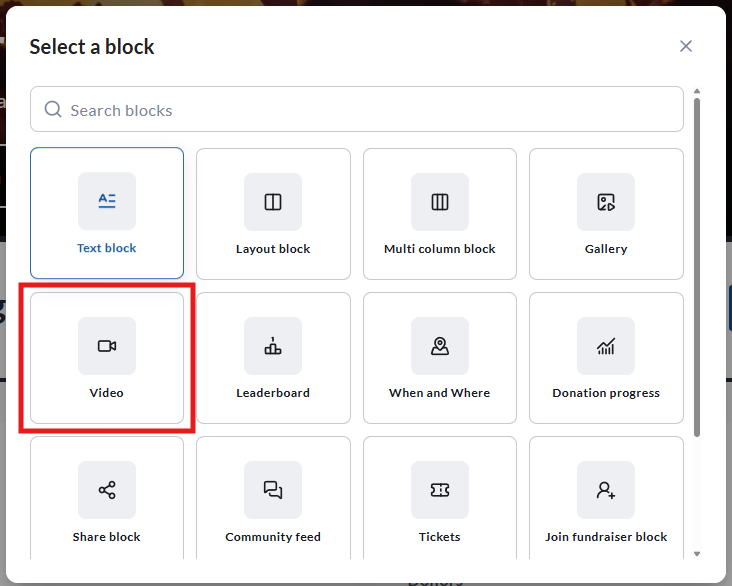
In the Select a block menu, click Video block
Once the Video block is in place, click Edit on the right hand side to adjust this block’s settings. You can adjust the following:
-
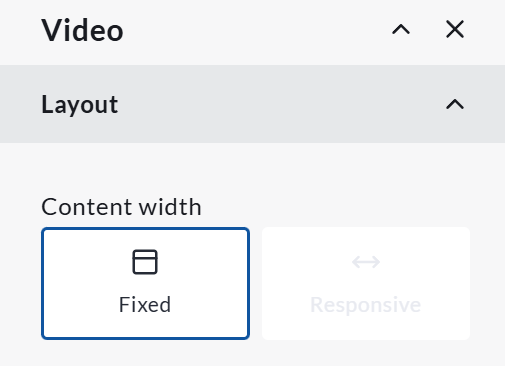
Layout - this allows you to set either a Fixed or Responsive width for your video. Fixed refers to one size on all screen sizes/devices, whereas responsive will adjust width based on screen size. Please note this will have no affect on mobile layouts - mobile layouts are always fixed.
-
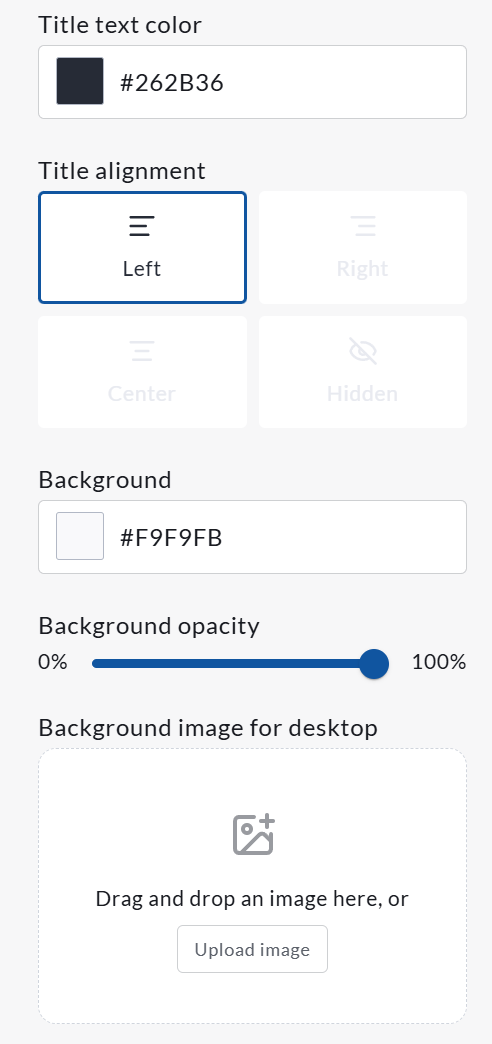
Appearance - this allows you to set the following:
-
Title text color (set by hex code)
-
Title alignment (left, right, centered, or hidden)
-
Background opacity
-
Background image (only visible on desktop view)
-
-
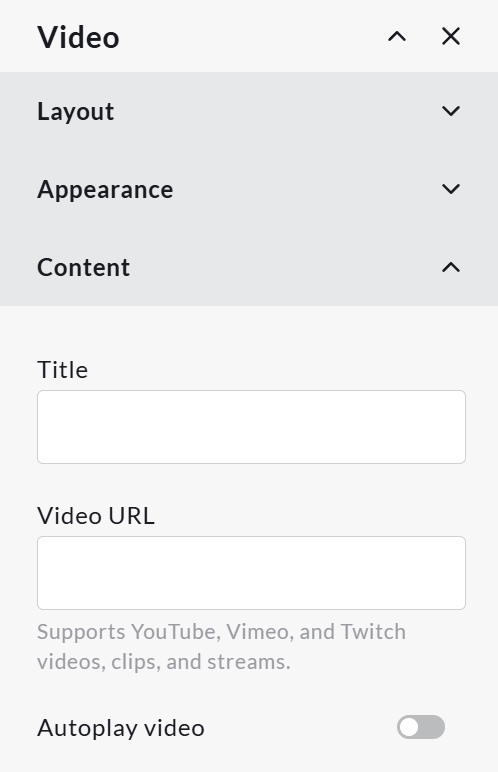
Content - this allows you to set the following:
-
Title - the title of the block
-
Video URL - videos from Youtube, Vimeo, or Twitch are accepted
-
Autoplay video - this determines whether or not users must click to play, or the video will play without input
-
Please note that videos that autoplay are muted by default unless clicked - this is not adjustable.
IMPORTANT - Hidden Videos
Videos must be accessible on their platform of origin in order to be used on CrowdChange. This means that videos that are private will not work. Unlisted videos, however, will work.