
CrowdChange offers the capability to add custom fees per fundraiser / event if necessary.
For example, if you need to add a separate ‘Shipping Cost’ to each apparel purchase on your fundraiser.
Custom fees can be a specific dollar amount or a percentage, and may be tax-deductible or not.
Please note: this feature is NOT available by default and must be enabled by CrowdChange staff.
-
Custom fee amounts can be refunded as part of a Partial Refund from the Admin Donations Report.
-
Custom fees can also be set per Blueprint, allowing you to copy set fees to connected fundraisers.
-
Promo Codes can be applied to custom fees in the same way they are applied to purchase options.
Enabling Custom Fees on a Fundraiser
-
Log In and navigate to your fundraiser.
-
Click Manage Fundraiser in the top-right section of the page.

-
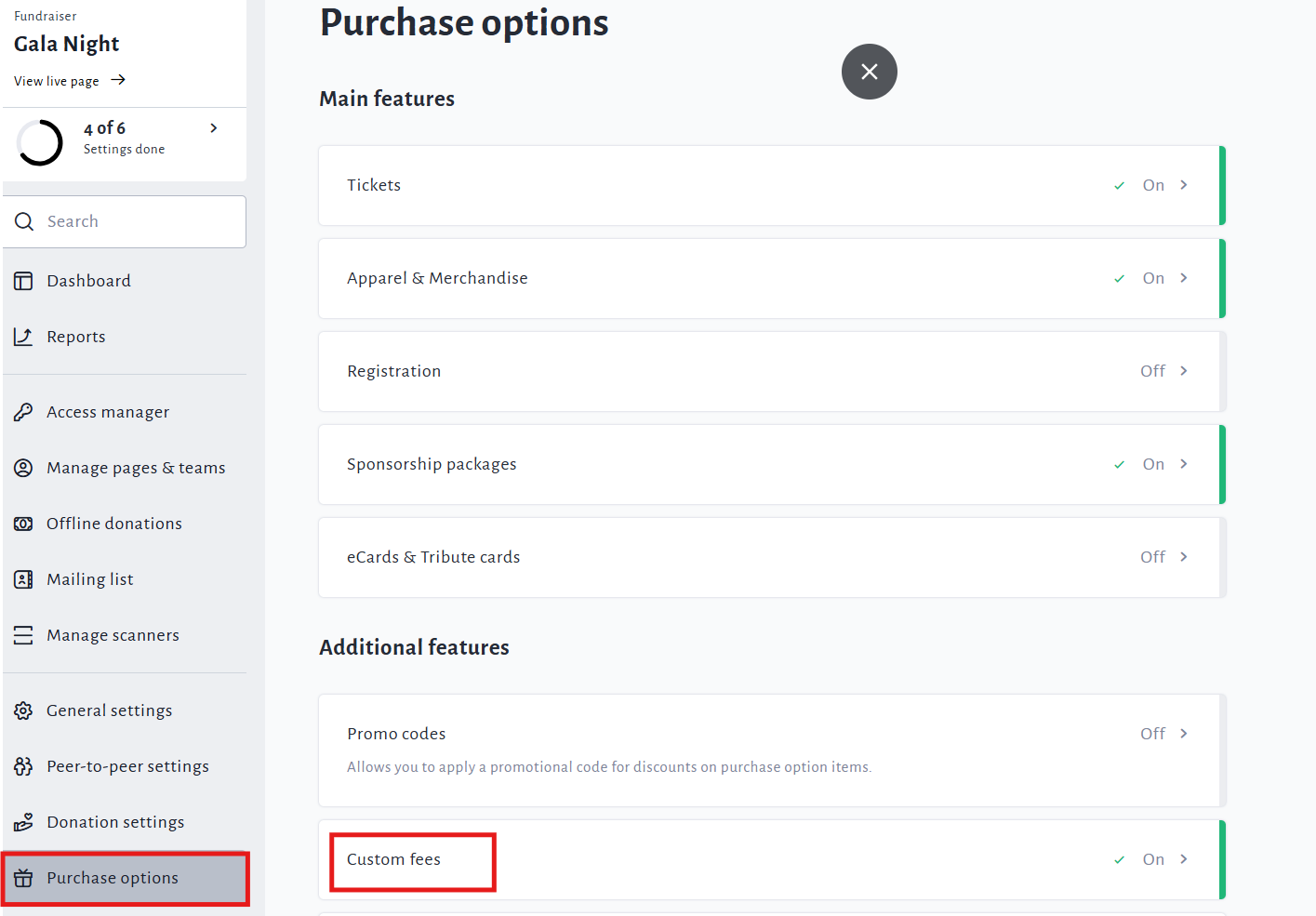
Click Purchase Options on the left sidebar, then Custom Fees.
-
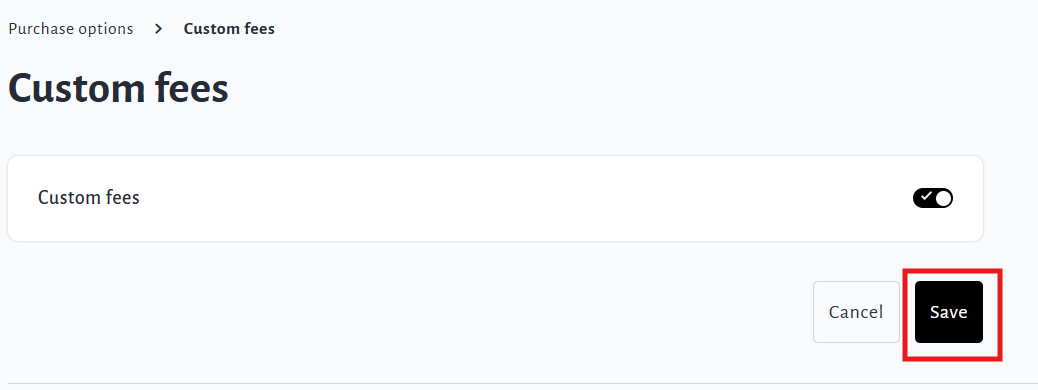
Enable Custom Fees and click Save.
Adding/Creating a Custom Fee
-
Log In and navigate to your fundraiser.
-
Click Manage Fundraiser in the top-right section of the page.
-
Click Purchase Options on the left sidebar, then Custom Fees.
-
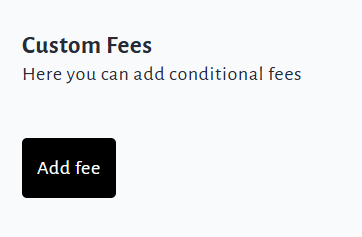
Click Add Fee.
-
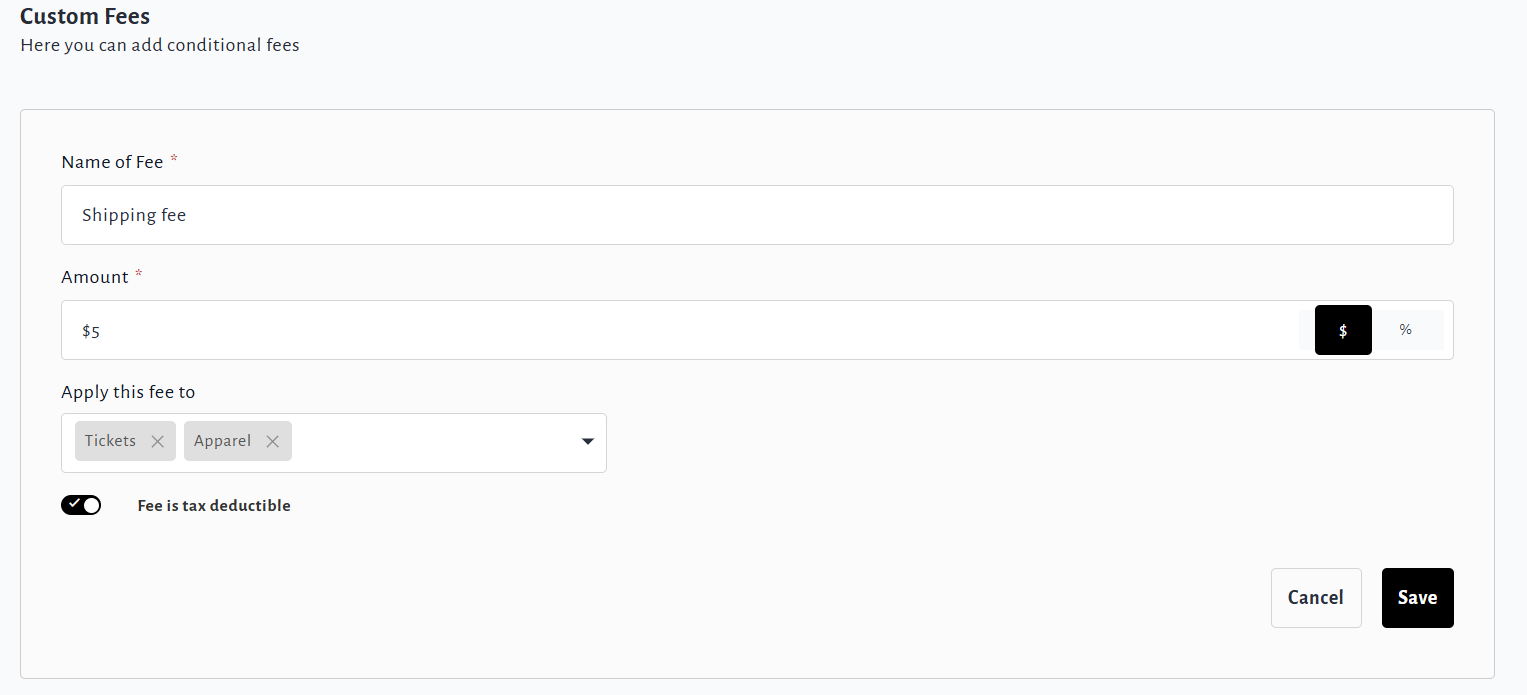
Name your custom fee and enter a dollar or percentage amount.
-
Select the purchase option(s) this fee should apply to.
-
Choose whether the fee is tax deductible or not.
-
Click Save to complete.